Att ha tillgång till dina Outlook-kontakter i Excel kan underlätta många arbetsuppgifter, från att skapa e-postlistor till att hantera kundrelationer. I den här guiden går vi igenom hur du kan använda ett makro för att importera Outlook-kontakter till ett kalkylblad i Excel.

Varför använda ett makro?
Det finns flera sätt att exportera kontakter från Outlook, men ett makro ger en mer direkt och automatiserad metod. Med VBA (Visual Basic for Applications) kan du enkelt koppla samman Excel och Outlook, vilket gör processen snabb och effektiv.
Metod för att koppla upp sig mot outlook
För att Excel ska kunna kommunicera med Outlook använder vi MAPI (Messaging Application Programming Interface). Med den metoden kan vi enkelt hämta kontakter och annan information.
Använda GetDefaultFolder
För att få tillgång till en specifik mapp i Outlook använder vi egenskapen GetDefaultFolder(). I vårt fall väljer vi mappen för kontakter, som motsvarar värdet 10.
Set olContacts = olApp.GetNamespace("MAPI").GetDefaultFolder(10)Nedan följer en lista över de olika mapparna i Outlook och deras värden:
| Parameter | Outlook-folder |
|---|---|
| 3 | Deleted Items |
| 4 | Outbox |
| 5 | Sent Items |
| 6 | Inbox |
| 9 | Calendar |
| 10 | Contacts |
| 11 | Journal |
| 12 | Notes |
| 13 | Tasks |
| 16 | Drafts |
Referenser till outlook-objekten
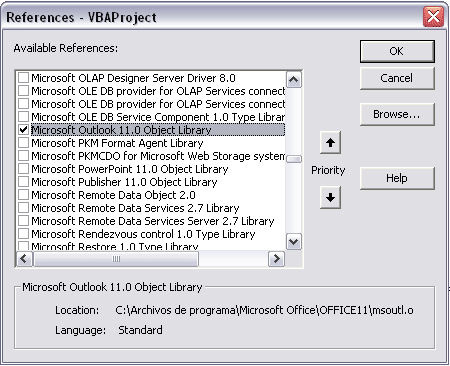
Innan du kör VBA-koden måste du se till att rätt referenser är angivna i VBA-editorn.
Gå till Tools -> References och se till att Outlook-biblioteket är markerat.
VBA-kod för att importera Outlook-kontakter
Nedan följer hela koden för att importera kontakter till ditt Excel-blad. Du kan köra den från ett kalkylblad eller lägga den i din Personal Macro Workbook för generell åtkomst.
Sub Importera_Outlook_Contacts()
    Dim olApp As Outlook.Application
    Dim olContacts As Outlook.MAPIFolder
    Dim olContact As Outlook.ContactItem
    Dim i As Integer

    Set olApp = New Outlook.Application
    Set olContacts = olApp.GetNamespace("MAPI").GetDefaultFolder(10)

    ' kolumnrubriker
    Cells(1, 1) = "Namn"
    Cells(1, 2) = "E-mail"
    Cells(1, 3) = "Titel"
    Cells(1, 4) = "Företag"
    Cells(1, 5) = "Tel (hem)"
    Cells(1, 6) = "Tel (mobil)"
    Cells(1, 7) = "Tel (arbete)"
    Cells(1, 8) = "Fax (arbete)"
    Cells(1, 9) = "Adress (företag)"
    Cells(1, 10) = "Postnr (företag)"
    Cells(1, 11) = "Stad (företag)"
    Cells(1, 12) = "Land (företag)"
    Cells(1, 13) = "Adress (hem)"
    Cells(1, 14) = "Postnr (hem)"
    Cells(1, 15) = "Stad (hem)"
    Cells(1, 16) = "Land (hem)"

    ' importerar contact-items
    For i = 2 To olContacts.Items.Count
        If TypeOf olContacts.Items.Item(i) Is Outlook.ContactItem Then
            Set olContact = olContacts.Items.Item(i)
            Cells(i, 1) = olContact.FullName
            Cells(i, 2) = olContact.Email1Address
            Cells(i, 3) = olContact.JobTitle
            Cells(i, 4) = olContact.CompanyName
            Cells(i, 5) = olContact.HomeTelephoneNumber
            Cells(i, 6) = olContact.MobileTelephoneNumber
            Cells(i, 7) = olContact.BusinessTelephoneNumber
            Cells(i, 8) = olContact.BusinessFaxNumber
            Cells(i, 9) = olContact.BusinessAddressStreet
            Cells(i, 10) = olContact.BusinessAddressPostalCode
            Cells(i, 11) = olContact.BusinessAddressCity
            Cells(i, 12) = olContact.BusinessAddressCountry
            Cells(i, 13) = olContact.HomeAddressStreet
            Cells(i, 14) = olContact.HomeAddressPostalCode
            Cells(i, 15) = olContact.HomeAddressCity
            Cells(i, 16) = olContact.HomeAddressCountry
        End If
    Next

    ' stänger ned objekt-variablerna
    Set olContact = Nothing
    Set olContacts = Nothing
    Set olApp = Nothing

    ' sorterar listan efter namn
    Cells.Sort Key1:=Range("A2"), Order1:=xlAscending, Header:=xlGuess
End Sub
Säkerhetsåtgärd i outlook
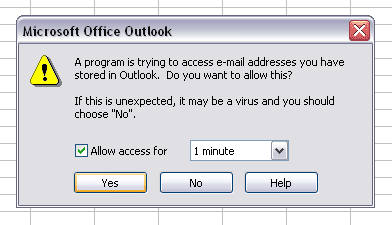
Observera att Outlook ber om åtkomst när du kör det här programmet. Du måste givetvis svara ”Ja” för att ge Excel åtkomst till dina kontakter.
Avslutande tankar
Nu har du en komplett guide för att importera dina Outlook-kontakter till Excel med hjälp av VBA. Genom att följa stegen ovan kan du enkelt få tillgång till dina kontakter och organisera dem.
Artikeln är en del av: Importera Access-tabeller i Excel via VBA